AVIF to JPG Converter
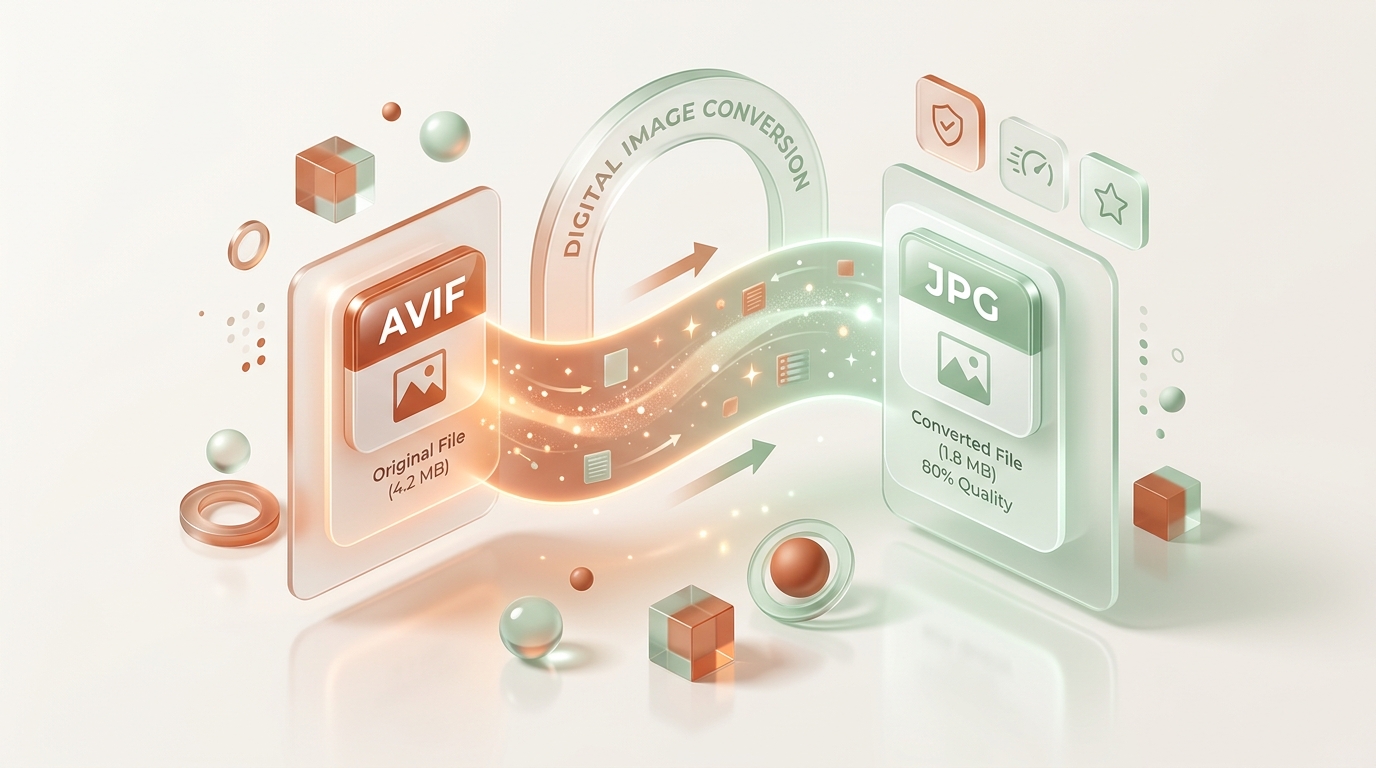
Convert your AVIF images to universally compatible JPG format — instantly, privately, and for free. No uploads to any server. Your files never leave your device.
AVIF delivers incredible compression using the AV1 codec, but not every device, printer, or photo editor supports it yet. Our browser-based converter transforms your .avif files into .jpg — the most universally supported image format in digital photography — with adjustable quality, batch processing, and zero data collection.
Drop AVIF files here or click to browse
Up to 20 files at once • Instant local offline conversion
Free AVIF to JPG Converter
Our converter transforms AVIF images into JPG format entirely within your web browser. No software installation, no account registration, no file size limits, and no watermarks. Just fast, private, unlimited image conversion.
Lightning-Fast Conversion
Leverages native browser Canvas and ImageBitmap APIs for instant local processing. No server queue wait times.
Complete Privacy
Your images are decoded and re-encoded entirely in your browser's memory. We never see, store, or transmit your files.
Adjustable Quality
Fine-tune output quality from 70% to 100% using our precision slider. Balance file size against visual fidelity for your exact needs.
Batch Processing
Convert up to 20 AVIF files simultaneously. Download individually or as a single ZIP archive for faster workflows.
Browser-Based
No downloads, plugins, or installations. Works instantly in Chrome, Firefox, Safari, Edge, and Opera on any operating system.
Mobile-Ready
Fully responsive on Android and iPhone. Convert images on the go directly from your mobile browser without any app.
Truly Free
Zero paywalls, zero premium tiers, zero daily caps. Free means free — no hidden costs, no surprise limitations.
No Registration
Skip the signup forms and email verification. Just open the page, drop your files, and download your converted JPGs.
What is AVIF?
Quick Answer: AVIF (AV1 Image File Format) is a modern, open-source image format that uses the AV1 video codec to deliver exceptional lossy and lossless compression, producing files up to 50% smaller than JPG at the same visual quality.
Developed by the Alliance for Open Media (AOM) — a consortium including Google, Apple, Microsoft, Mozilla, Netflix, and Amazon — AVIF was first specified in 2019 as a royalty-free alternative to proprietary formats like HEIC.
At its core, AVIF leverages the intra-frame coding tools of the AV1 codec, which was originally designed for video compression. This heritage gives AVIF access to advanced techniques like variable block-size partitioning, directional intra prediction, and sophisticated loop filtering — resulting in dramatically better compression efficiency than older standards.
Key Features of AVIF
- Superior Compression: Up to 50% smaller files than JPEG and 20-30% smaller than WebP at equivalent visual quality.
- HDR Support: Wide color gamut and high dynamic range for vivid, lifelike images on supported displays.
- Transparency (Alpha): Full alpha channel support for images with transparent backgrounds — unlike JPG.
- Lossless & Lossy: Supports both compression modes. Lossless AVIF preserves every pixel perfectly.
- Royalty-Free: No licensing fees. Free to use for individuals and businesses worldwide.
- Animation Support: Can encode animated image sequences, similar to GIF but with vastly better quality and compression.
AVIF at a Glance
What is JPG?
Quick Answer: JPG (JPEG) is the world's most widely used image format, created in 1992 by the Joint Photographic Experts Group. It uses lossy compression to produce compact files ideal for digital photography, web publishing, printing, and sharing.
For over three decades, JPG has been the default format for digital cameras, smartphones, social media platforms, email attachments, and printed photographs. Its universality is unmatched — every operating system (Windows, macOS, Linux), every mobile device (Android, iPhone), every browser (Chrome, Firefox, Safari, Edge), and every image editor (Adobe Photoshop, GIMP, Canva) handles JPG natively.
JPG achieves its compact file sizes through lossy compression based on the Discrete Cosine Transform (DCT). This mathematical technique analyzes 8×8 pixel blocks, discarding high-frequency visual information that the human eye is less sensitive to. At high quality settings (85-95%), the compression artifacts are virtually invisible.
JPG Strengths & Limitations
✓ Strengths
- • Universal device & software support
- • Excellent for digital photography
- • Small file sizes at good quality
- • Perfect for printing & sharing
- • Fast loading on websites
- • Works with all email clients
✗ Limitations
- • No transparency support
- • Lossy only — no lossless mode
- • No HDR or wide color gamut
- • Quality degrades on re-saves
- • Larger files than AVIF/WebP
- • No animation support
JPG at a Glance
AVIF vs JPG
Drag the slider below to visually compare AVIF and JPG characteristics side by side.
| Feature | AVIF | JPG |
|---|---|---|
| File Size | Excellent (up to 50% smaller) | Good (larger than AVIF/WebP) |
| Compression Type | Lossy + Lossless | Lossy only |
| Image Quality | Superior at low bitrates | Good at high quality settings |
| Transparency | ✓ Alpha channel | ✗ Not supported |
| HDR Support | ✓ 10-bit+ color depth | ✗ 8-bit only |
| Browser Support | Chrome 85+, Firefox 93+, Safari 16.4+ | All browsers since 1995 |
| Photo Editing | Limited (Photoshop, GIMP 2.10+) | Universal (all editors) |
| Printing | Limited printer support | Universal printer support |
| Loading Speed | Faster (smaller files) | Slightly slower (larger files) |
| SEO / Web Performance | Excellent (smaller = faster) | Good (widely cached) |
| Storage Efficiency | Excellent | Moderate |
| Metadata (EXIF) | Supported | Supported |
| Animation | ✓ Supported | ✗ Not supported |
How to Convert AVIF to JPG
Click each step below to see detailed instructions. The entire process takes seconds.
Pro Tips for Best Results
- • Set quality to 95-100% for archival or printing purposes. Use 80-85% for web and social media sharing.
- • For images with transparency, convert to PNG instead of JPG to preserve the alpha channel.
- • Use batch conversion + ZIP download to convert entire photo albums in a single operation.
- • The converter works offline once loaded — perfect for travel or limited connectivity.
Why Convert AVIF to JPG?
While AVIF is a technically superior format, real-world compatibility often demands JPG. Here are the most common reasons users convert.
Device Compatibility
Older smartphones, tablets, smart TVs, and digital photo frames don't understand AVIF. JPG works on every device manufactured in the last 30 years.
Photo Editing Software
Many image editors, including older versions of Adobe Photoshop, Lightroom, and Canva, lack AVIF import support. JPG opens everywhere.
Email Attachments
Email clients like Outlook, Gmail preview pane, and Apple Mail may not render AVIF inline. JPG attachments display reliably in every client.
Social Media Uploads
Platforms like Facebook, Instagram, Twitter/X, and LinkedIn accept JPG natively. AVIF uploads may be rejected or silently re-encoded.
Printing Services
Commercial print shops, home printers, and online photo printing services universally accept JPG. Very few support AVIF as an input format.
Legacy Systems
Enterprise software, document management systems, medical imaging platforms, and government databases still rely on JPG/TIFF standards.
Advantages of Each Format
Both formats excel in different scenarios. Understanding their strengths helps you choose the right one.
Advantages of JPG
Works on every device, browser, OS, printer, and software application ever created.
Effective lossy compression keeps files small for fast email, upload, and download speeds.
Opens natively in Adobe Photoshop, GIMP, Canva, Paint, Preview, and thousands more.
Attach to emails, post on social media, embed in documents — JPG just works everywhere.
Every home printer, commercial press, and online service accepts JPG without conversion.
Digital cameras and smartphones default to JPG for their captured photos.
Advantages of AVIF
Up to 50% smaller files than JPG at the same visual quality — saving bandwidth and storage.
Fewer compression artifacts, especially at lower bitrates where JPG shows visible blocking.
10-bit and 12-bit color depth for vivid, lifelike images on HDR-capable displays.
Full alpha channel support for transparent backgrounds — essential for logos and overlays.
Dramatically improves Core Web Vitals (LCP, CLS) for better SEO rankings and user experience.
No licensing fees unlike HEIC. Free for personal, commercial, and enterprise use.
When Should You Use Each Format?
Use AVIF When…
- Building modern websites that need fast loading (Core Web Vitals)
- Optimizing image-heavy galleries or e-commerce catalogs
- You need transparency AND small file sizes
- Serving images to modern browsers (Chrome, Firefox, Edge, Safari 16.4+)
- Storing high-quality photos with minimal cloud storage usage
- Creating HDR content for compatible displays
Use JPG When…
- Sharing photos via email, messaging apps, or social media
- Printing images at home or through a commercial service
- Editing in traditional software (older Photoshop, Paint, etc.)
- Maximum compatibility is more important than file size
- Uploading to platforms that don't accept AVIF (most social media)
- Working with legacy systems, enterprise databases, or archives
Common Uses of AVIF
Web Development
Next-generation image optimization for responsive websites, reducing bandwidth by 40-50%.
E-Commerce
Product photography with transparent backgrounds and minimal file sizes for faster page loads.
Cloud Storage
Archiving large photo libraries with significantly reduced storage costs compared to JPG or PNG.
App Development
Mobile and desktop applications targeting modern platforms with native AVIF decoding support.
HDR Content
Photography and media for HDR-capable monitors, TVs, and smartphones with wide color gamut.
Common Uses of JPG
Digital Photography
The default output format for digital cameras, DSLRs, and smartphone cameras worldwide.
Social Media
Standard upload format for Facebook, Instagram, Twitter/X, LinkedIn, and Pinterest.
Email Attachments
Universally previewable in Gmail, Outlook, Apple Mail, Yahoo, and every webmail client.
Print Media
Accepted by all printing services — from home inkjet printers to commercial offset presses.
Document Embedding
Natively supported in Word, PowerPoint, Google Docs, PDF documents, and presentation software.
Supported Browsers for AVIF
AVIF browser support has grown rapidly since 2020. Here's where AVIF and JPG work today. Note that JPG is supported universally, while AVIF requires modern browser versions.
Chrome
85+
Firefox
93+
Safari
16.4+
Edge
85+
Opera
71+
Samsung Internet
14+
IE 11
N/A
Older Safari
<16
Data based on caniuse.com browser compatibility tables as of 2026. For older browsers without AVIF support, convert your images to JPG using the tool above.
Does Converting AVIF to JPG Reduce Quality?
Short Answer: Yes, some quality loss is possible since both AVIF and JPG use lossy compression. However, at high quality settings (90-100%), the difference is virtually imperceptible to the human eye.
When you convert an AVIF image to JPG, the browser decodes the AV1-compressed pixel data and re-encodes it using JPEG's DCT-based compression algorithm. This is known as transcoding — converting from one lossy format to another — and each lossy encoding cycle can introduce additional generation loss.
The amount of visible degradation depends primarily on two factors: the quality level of the original AVIF file and the output quality you select for the JPG. Converting a high-quality AVIF (encoded at quality 80+) to JPG at 95% output quality produces results that are practically indistinguishable from the source in side-by-side comparisons.
For professional or archival purposes where zero quality loss is critical, consider converting AVIF to PNG (lossless) instead of JPG. Our tool supports PNG output with full pixel-perfect fidelity.
How to Preserve Image Quality
Follow these professional tips to minimize quality loss when converting between image formats.
Use the Highest Practical Quality Setting
Set the output slider to 95-100% for archival, printing, or professional photography. Use 80-85% only when you need to prioritize smaller file sizes for web or email.
Avoid Multiple Re-Conversions
Each lossy-to-lossy conversion introduces cumulative artifacts. Convert from the original source file whenever possible, not from a previously converted copy.
Convert to PNG for Lossless Output
If you need zero quality loss and file size is secondary, convert AVIF to PNG. PNG is lossless and preserves every pixel exactly as the source.
Start with High-Quality Source Files
A heavily compressed AVIF (quality 30-50%) will already contain visible artifacts. Converting it to JPG cannot restore lost detail — it can only preserve what remains.
Check Resolution Before Converting
Ensure your source AVIF has sufficient pixel dimensions (image resolution) for your intended use. Upscaling a low-resolution image before converting will not improve quality.
Use Our Visual Preview
After conversion, compare the output with the original in our tool. If artifacts are visible, increase the quality slider and re-convert.
Common Conversion Errors
Encountering issues? Here are the most common problems and how to fix them.
Unsupported File Format
The uploaded file isn't a valid AVIF. Make sure the file extension is .avif and it hasn't been renamed from another format.
Verify the file was originally saved/exported as AVIF.
Corrupted Image File
The AVIF file may be damaged from an incomplete download, interrupted transfer, or disk error.
Re-download the original file or request a new copy from the source.
File Too Large
Very large files (100 MB+) may cause your browser tab to freeze due to insufficient device RAM.
Close other tabs, restart the browser, or try a device with more memory.
Browser Compatibility
Some older browsers (IE 11, Safari < 16) cannot decode AVIF images natively.
Update your browser to the latest version, or switch to Chrome/Firefox/Edge.
Slow Processing Speed
Conversion speed depends on your device's CPU and available memory, not internet speed.
Close background apps to free up CPU/RAM. Our tool works fully offline once loaded.
Lost Transparency
JPG does not support transparent backgrounds. Transparent areas will be filled with white.
Convert to PNG instead of JPG to preserve transparency (alpha channel).
Security and Privacy
Unlike most online converters that upload your files to remote servers, our tool processes everything locally in your browser. Here's exactly what happens to your data.
Stays on your device
Processed in local memory
Saved directly to downloads
Browser-Side Processing
Your images are decoded and re-encoded using native browser Canvas and ImageBitmap APIs. The conversion happens entirely within your device's local memory.
Zero Data Collection
We don't track, store, log, or analyze your uploaded files. We have no server-side file handling infrastructure. Your images are invisible to us.
Automatic Memory Cleanup
Browser object URLs and canvas buffers are revoked immediately after download. No residual data remains in browser memory or temporary storage.
Explore More Image Converters
Frequently Asked Questions
Everything you need to know about converting AVIF images to JPG format.
Ready to Convert Your AVIF Images?
Whether you need to share photos via email, print images at home, upload to social media, or ensure compatibility with older devices and software — converting AVIF to JPG gives you universal access to your images.
Our free, browser-based AVIF to JPG converter processes your files locally with zero server uploads, zero data collection, and zero cost. It works on Windows, macOS, Linux, Android, and iPhone — across Chrome, Firefox, Safari, and Edge. No installation. No registration. Just results.