20KB vs Pixel Dimensions: What Online Forms Really Require
Understand the key differences between 20KB file size limits and pixel dimensions on government forms and online application portals.
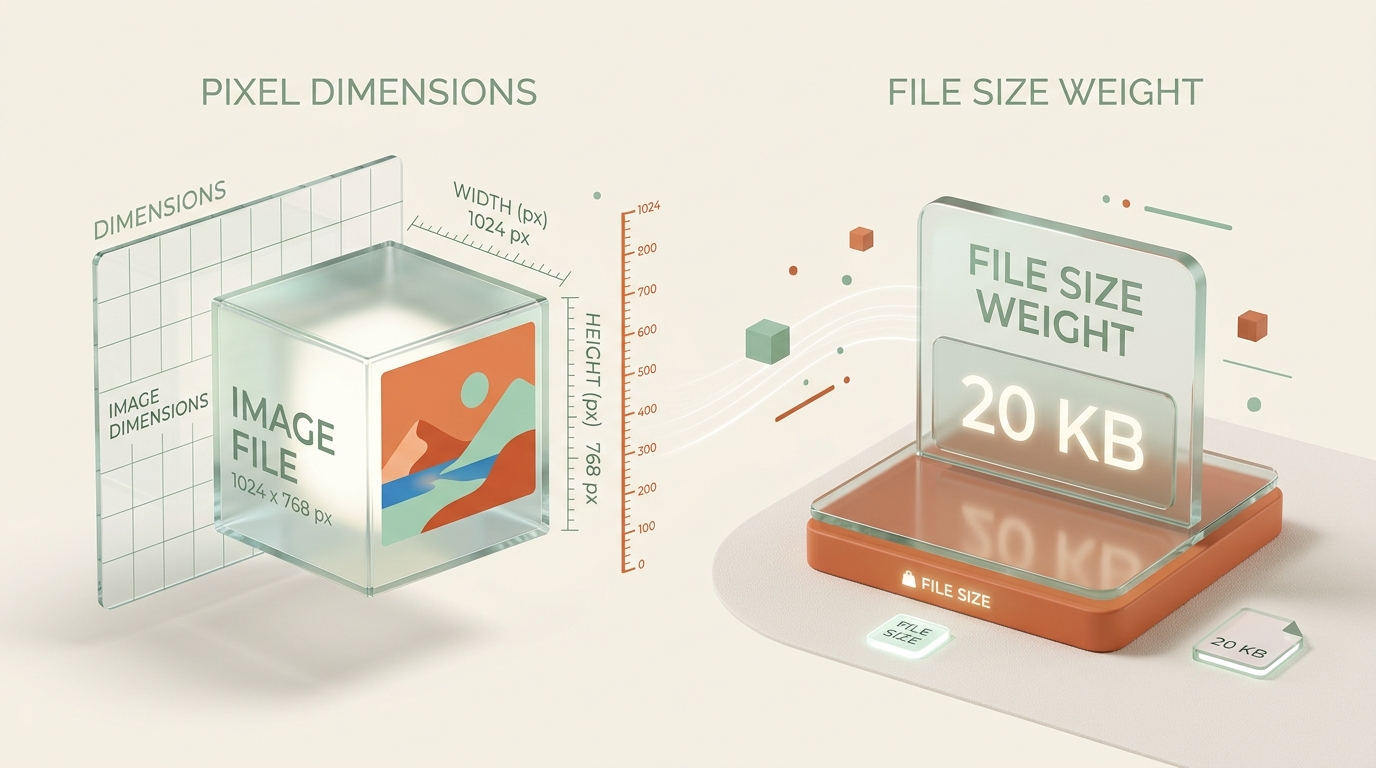
Two numbers cause more confused, rejected uploads than anything else: file size and pixel dimensions. They sound similar, get confused constantly, and yet measure completely different things about the same image. This guide untangles 20KB vs pixel dimensions clearly, so you stop guessing which requirement your photo is actually failing.
Key Differences: File Size (KB) vs. Pixel Dimensions (Pixels)
Storage Weight (Kilobytes) vs. Visual Grid Canvas (Width × Height)
File size measures how much data storage your image consumes, expressed in kilobytes (KB) or megabytes (MB). Pixel dimensions measure the physical width and height of the image in pixels (px), completely independent of how efficiently that data happens to be compressed.
Why Treating Size and Dimensions as the Same Thing Triggers Upload Rejections
An image can satisfy one requirement perfectly while badly missing the other, because they measure fundamentally unrelated properties of the same file. Understanding this distinction resolves the majority of confused, repeated upload failures people run into on government and application portals.
Core Definitions: Storage Size, Pixel Dimensions, and Resolution Explained
What Does a 20KB Maximum File Size Actually Mean?
A 20KB maximum file size requirement cares purely about data weight, the number your computer’s file properties panel displays. It says nothing directly about how large or small the image appears visually, only how much storage space the file occupies once saved.
Two completely different-looking photos—one large and heavily compressed, another small and lightly compressed—could both land at exactly 20KB despite looking nothing alike in terms of pixel count or visible detail.
What Do Width and Height Pixel Dimensions (W × H) Specify?
Width and height requirements specify the image’s physical pixel grid, commonly written as something like “600×600 pixels” or “350×450 pixels”. This number stays completely fixed regardless of compression level or file size, since it describes the image’s actual visual canvas, not its storage weight.
A photo resized to exactly 600×600 pixels satisfies the dimension requirement immediately, whether that file ends up weighing 20KB or 200KB, because compression and dimension are simply unrelated variables.
Understanding DPI and PPI: Why Print Resolution Doesn’t Affect Web Uploads
Resolution and pixel dimensions are closely linked but not identical. Resolution (DPI/PPI) typically refers to print pixel density, while dimensions refer to total pixel count. For most online forms, though, what actually matters is the straightforward pixel dimensions (width × height), not the technical print-resolution metadata.
Don’t worry about DPI settings for web and application uploads specifically, since almost every online portal cares only about pixel dimensions and file size, ignoring print-resolution metadata entirely.
Why an Image Meets Pixel Dimension Rules but Fails the 20KB Limit
High-Density Uncompressed Image Files and Byte Budgets
This is one of the most common rejection scenarios. A photo correctly cropped to the exact required pixel dimensions can still weigh well over 20KB if compression hasn’t been applied at all, since dimension and file size are controlled by entirely separate settings.
Why Cropping Dimensions Alone Does Not Guarantee a 20KB File Size
Fixing dimensions doesn’t automatically fix file size, and vice versa. Both need deliberate, separate attention during the resizing process, which is exactly the step people skip when they assume cropping to the right size handles everything automatically.
Why Two Photos with Identical Pixel Dimensions Have Different File Sizes
Visual Complexity, Entropy, and Detail Information Density
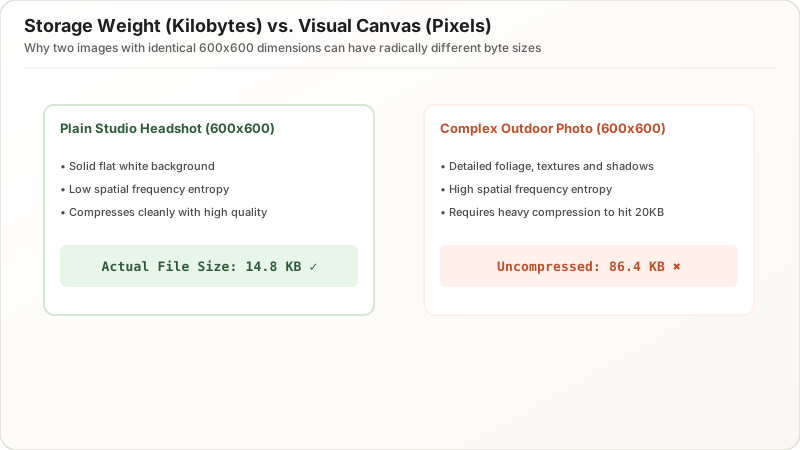
Content complexity drives this gap. A simple, plain-background headshot at 600×600 pixels might compress down to 15KB easily, while a busy, detailed photo at the exact same dimensions might still weigh 80KB at similar quality settings, since it simply contains more visual information for the algorithm to encode.
Plain Background Portraits vs. High-Frequency Textures
| Image Type | Dimensions | Typical File Size | Why It Differs |
|---|---|---|---|
| Plain Studio Headshot | 600×600px | 10KB–20KB | Low visual entropy |
| Detailed Outdoor Scene | 600×600px | 40KB–100KB | High edge complexity |
This is why identical pixel dimensions never guarantee identical file size, a fact that surprises people relying on dimension alone as their resizing benchmark.
Two-Step Method: How to Satisfy Both File Size and Dimension Rules
Step 1: Crop and Scale to the Exact Pixel Dimensions First
- Lock the aspect ratio (e.g., 1:1 square or 3:4 portrait).
- Set the required pixel canvas (e.g., 600×600px or 350×450px) and apply high-quality resampling.
Step 2: Adjust Compression Quality to Land Under 20KB Second
Then handle file size second, adjusting compression quality until the number falls under the 20KB cap. Doing these in reverse order risks needing to redo the crop after compression changes things unexpectedly. Most quality resize tools let you set both values together in one pass, but understanding the two-step logic underneath helps you troubleshoot manually whenever an automated tool doesn’t quite nail both numbers on the first try.
How Aspect Ratio Preserves Visual Proportions and Prevents Distortion
Preventing Stretched or Squashed Faces in Identity Headshots
Aspect ratio, the proportional relationship between width and height, matters just as much as raw pixel count. A photo can hit the exact required file size and total pixel count while still looking stretched or squashed if the aspect ratio doesn’t match what the form actually expects.
Common Form Aspect Ratios: 1:1 Square, 3:4 Passport, and 2:3 Visa Standards
Always crop to the correct ratio first—square (1:1), portrait (3:4), or whatever the form specifies—before finalizing exact dimensions, to avoid unnatural distortion in the final submitted image.
Pre-Submission Verification: How to Check Both Specifications
The 3-Point Checklist: Kilobytes, Pixel Dimensions, and Aspect Ratio
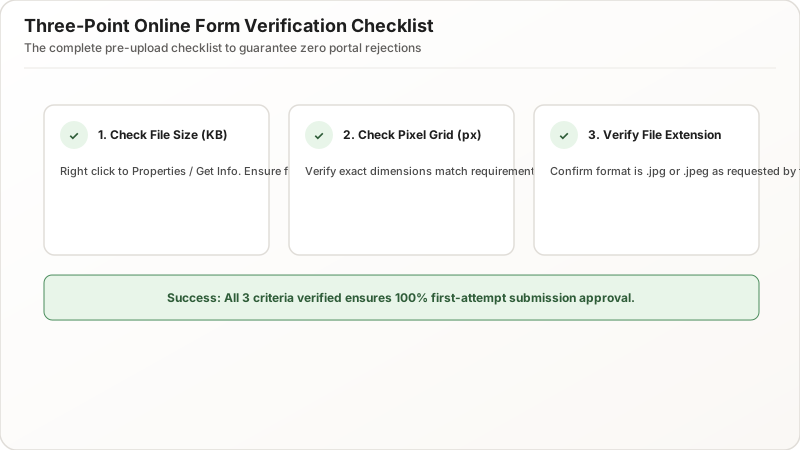
Check three things independently before submitting:
- File size in kilobytes (target: under 20KB, ideally 18–19KB)
- Pixel dimensions (exact W × H matching portal rules)
- Aspect ratio (no visual stretching or squashing)
Checking File Properties in Windows File Explorer and Mac Finder
Most file managers display dimensions and file size together in the same properties panel, making this a quick, single check worth doing every time before uploading to any online form.
Summary & Practical Takeaways: Mastering Both Image Metrics
File size and pixel dimensions measure completely different things, and online forms frequently demand strict compliance with both simultaneously. Crop to the correct dimensions first, compress to the correct file size second, and verify both numbers independently before uploading. Master that two-step sequence, and confused, repeated rejections become a thing of the past.