How to Resize a Photo to 20KB Without Uploading It Anywhere (Privacy-First Guide)
Learn how to compress sensitive photos to 20KB entirely offline on your device using built-in OS tools and client-side processing.
Handing a personal photo to an unknown cloud server feels risky, especially when that photo is a passport scan, an ID card, or official biometric documentation. This privacy-first guide walks through resizing a photo to 20KB entirely on your own device—with zero cloud uploads, zero data retention, and 100% offline security.
Why Privacy-Sensitive Photos Should Never Be Uploaded to Cloud Servers
Protecting Passport Scans, Biometric IDs, and Official Documents
Certain photos carry significant privacy risks:
- Passport pages & National ID cards: Contain full legal names, dates of birth, document numbers, and facial biometrics.
- Financial & Tax Documents: Contain sensitive identity and income records.
- Driver’s Licenses: Feature home addresses and signature vectors.
Third-Party Server Logging, Data Retention, and Privacy Risks
Once an identity image is transmitted to a remote cloud server:
- The file may sit in unencrypted temporary cache directories.
- Server access logs may record IP addresses, EXIF metadata, and geolocation.
- Unverified image processing websites may lack documented data retention and deletion policies.
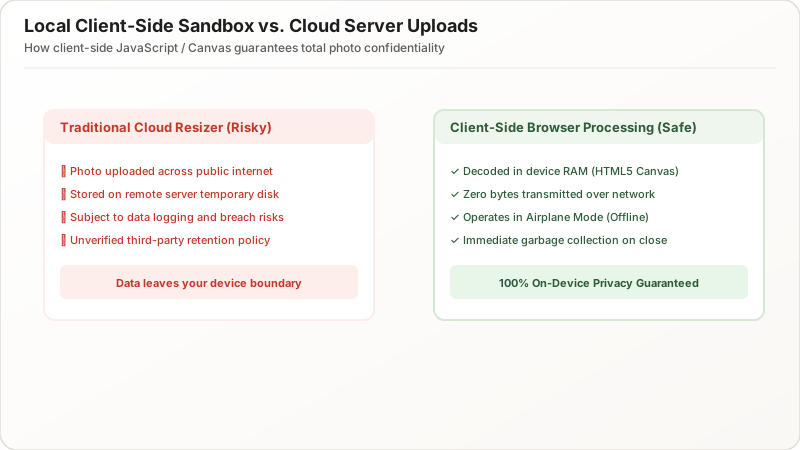
Local image resizing completely eliminates these vulnerabilities by keeping the entire processing pipeline confined to your computer’s local memory (RAM).
How Local, On-Device Image Compression Protects Your Privacy
Zero Network Data Transmission and Instant Zero-Server Footprint
Client-side image resizing processes pixels using your device’s own CPU/GPU. The file never travels across an internet connection, guaranteeing zero server footprint and zero exposure to cloud data breaches.
In-Memory Sandboxed Processing on Your Local Hardware
In-memory processing operates inside a secure sandbox. Even if you turn off your Wi-Fi or enable Airplane Mode, the resizing tool continues to operate at full speed.
Step-by-Step: How to Resize Photos to 20KB Offline on Any Device
1. How to Compress Photos Offline on Windows Using Built-in Tools (Paint & Photos)
- Right-click your image and select Open with > Paint.
- Click Resize / Scale on the top toolbar.
- Switch from Percentage to Pixels and enter 600px width (ensure aspect ratio is locked).
- Click File > Save As > JPEG picture.
- Check file size in File Explorer properties (confirm under 20KB).
2. How to Resize Images Locally on macOS Using Apple Preview and Quick Actions
- Double-click the image to launch Apple Preview.
- Click Tools > Adjust Size… from the top menu bar.
- Set width to 600 pixels (resolution: 72 pixels/inch).
- Click File > Export…, select JPEG, and drag the Quality slider to ~50–60%.
- Check that the estimated file size is 18–19KB before saving.
3. How to Compress Images Offline on Android and iOS Mobile Devices
- On Android: Use your phone’s built-in Gallery photo editor to crop and scale down image dimensions. Ensure the app has no internet permissions enabled.
- On iOS: Use Apple Photos to crop to 1:1 or 3:4 aspect ratio, or use the Shortcuts app to build a native offline resize workflow.
4. Precision Offline Image Editing with GIMP and Photoshop
Desktop editors provide exact real-time byte preview dialogs:
| Tool | Platform | 100% Offline? | Byte-Target Control |
|---|---|---|---|
| Windows Paint | Windows | Yes | Basic (Dimensions only) |
| Apple Preview | macOS | Yes | Good (Quality slider preview) |
| GIMP (Free/Open Source) | All OS | Yes | Exact (Real-time KB preview) |
| Adobe Photoshop | Windows/Mac | Yes | Exact (“Save for Web” dialog) |
How Browser-Based Client-Side Tools Compress Images Without Server Uploads
Client-Side HTML5 Canvas and Local JavaScript Processing
Modern browsers can manipulate raw pixel data directly using HTML5 <canvas> and JavaScript Canvas 2D APIs. When you select an image, the browser reads the file locally via the FileReader API, draws it to an offscreen canvas, and exports a compressed JPEG blob without making any HTTP network requests.
WebAssembly (Wasm) In-Memory High-Speed Image Codecs
Advanced tools use compiled WebAssembly (Wasm) binaries (like libjpeg-turbo or libwebp) running directly in browser memory. This gives desktop-grade compression speeds with zero server transmission.
How to Verify That an Online Resizer Is Truly 100% Local and Private
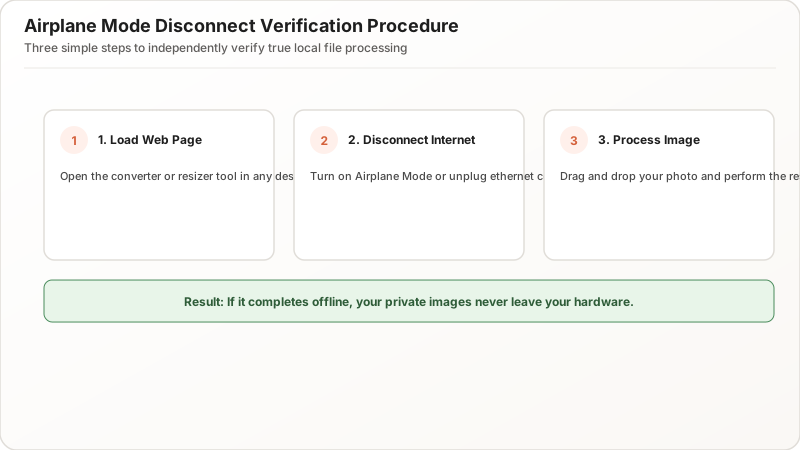
The Offline / Airplane Mode Disconnect Verification Test
- Open the tool’s webpage in your browser.
- Disconnect your internet connection (turn off Wi-Fi or turn on Airplane Mode).
- Drag and drop your photo into the converter and click compress.
- If the photo resizes successfully while offline, the tool is 100% local and private.
Inspecting Network Activity in Browser Developer Tools (DevTools)
Press F12 (or right-click and choose Inspect), open the Network tab, and resize a photo. A genuine client-side tool will show zero outbound POST/PUT requests carrying image payload data.
Privacy Pitfalls of Standard Online Image Converters
Hidden EXIF Metadata Leaks, Server Caching, and Ad Analytics
Traditional converter websites frequently retain uploaded images in temporary storage buckets, analyze EXIF metadata (camera serial numbers, GPS coordinates, timestamps), and load third-party ad tracking scripts.
Cloud Storage Vulnerabilities and Third-Party Data Exposure
Misconfigured cloud buckets (AWS S3 / Google Cloud Storage) have historically exposed millions of user-uploaded files to the public web. Sticking to client-side or native OS tools eliminates this threat entirely.
Summary & Privacy-First Checklist for 20KB Photo Resizing
When handling identity documents, passport photos, and visa headshots:
- Always prefer client-side in-browser converters or built-in OS tools.
- Run the Airplane Mode disconnect test to verify zero cloud uploads.
- Confirm final file size is between 18KB and 19KB in your file manager.